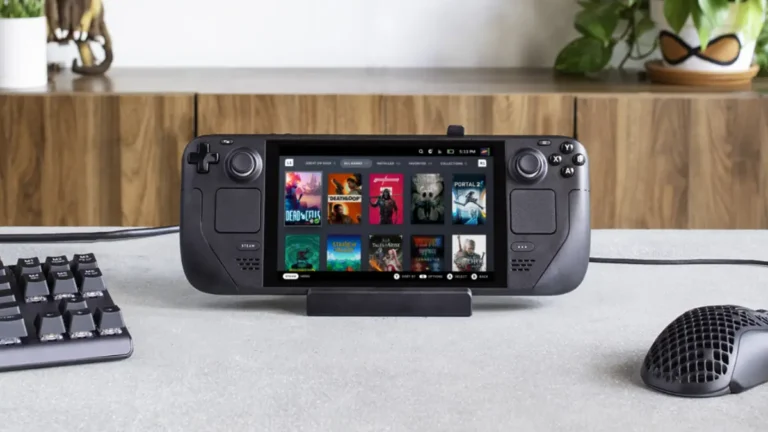


The Steam Deck is an incredible handheld gaming PC, but your game library doesn’t have to be limited to Steam. If you’ve been collecting free games from Epic Games Store’s weekly giveaways or have purchased titles there, you’ll be happy to know you can play them on your Steam Deck. Getting Epic on Steam Deck is easier than you might think.
While there are several methods available for installing Epic on Steam Deck (including Lutris, NonSteamLaunchers, and the official launcher), this guide focuses on the two most popular, practical, and user-friendly options that the Steam Deck community uses most: Heroic Games Launcher and Junk-Store plugin. Both methods are completely free.
What You Need to Know Before Installing Epic on Steam Deck
The Steam Deck runs SteamOS, a Linux-based operating system. Since Epic Games doesn’t offer a native Linux client, you’ll need to use community-created solutions. Don’t worry—these tools are well-established, regularly updated, and trusted by thousands of Steam Deck users.
Important compatibility note: Most single-player Epic Games work great on Steam Deck. However, online multiplayer games with anti-cheat systems (like Fortnite) won’t work unless the developer specifically enables Linux support. Resources like ProtonDB can help you check game compatibility before installing.
To get started, you’ll need to access Desktop Mode on your Steam Deck. Here’s how:
- Press the Steam button
- Navigate to Power
- Select “Switch to Desktop”
Desktop Mode gives you full access to the Linux operating system, allowing you to install software outside of Steam.

Method 1: Installing Epic on Steam Deck with Heroic Games Launcher
Heroic Games Launcher is the most popular solution for getting Epic on Steam Deck. It’s a free, open-source launcher designed specifically for Linux that provides native support for both Epic Games Store and GOG. The installation is straightforward, and it’s the method most community guides recommend.
Installing Heroic Games Launcher
Step 1: Access Discover Store
While in Desktop Mode, locate and click the Discover icon in the taskbar (it looks like a blue shopping bag). This is SteamOS’s app store.
Step 2: Search and Install
In Discover, search for “Heroic Games Launcher” and click Install. The installation requires approximately 500MB of storage space.
Step 3: Launch and Log In
Once installed, open Heroic Games Launcher from the desktop or applications menu. Click on the “Log In” tab and select “Epic Games Login.” You’ll be directed to Epic’s web login page—enter your credentials to link your account.
Step 4: Configure Proton Compatibility
This step is crucial for games to run properly:
- In Heroic, go to Settings (gear icon)
- Under “Wine Version,” select a Proton version (Proton-GE is recommended)
- Enable “Show Wine settings” and adjust as needed
Heroic will automatically detect and use the best compatibility layer for most games, but you can manually change Proton versions for specific titles if needed.
Step 5: Add Heroic to Steam Library
To access Heroic from Gaming Mode:
- Open the Steam desktop client
- Click “Games” in the menu
- Select “Add a Non-Steam Game to My Library”
- Find Heroic Games Launcher in the list and check the box
- Click “Add Selected Programs”
Now you can launch Heroic directly from your Steam library in Gaming Mode.
Installing and Playing Games
From within Heroic Games Launcher:
- Browse your Epic Games library
- Click on any game you want to install
- Choose your installation location (internal storage or SD card)
- Wait for the download to complete
- Click Play
The launcher handles all the Proton configuration automatically. If a game doesn’t launch, try changing the Proton version in the game’s settings within Heroic.
For even better gaming performance, check out our guide on FSR 4 for Steam Deck to enhance your graphics quality.
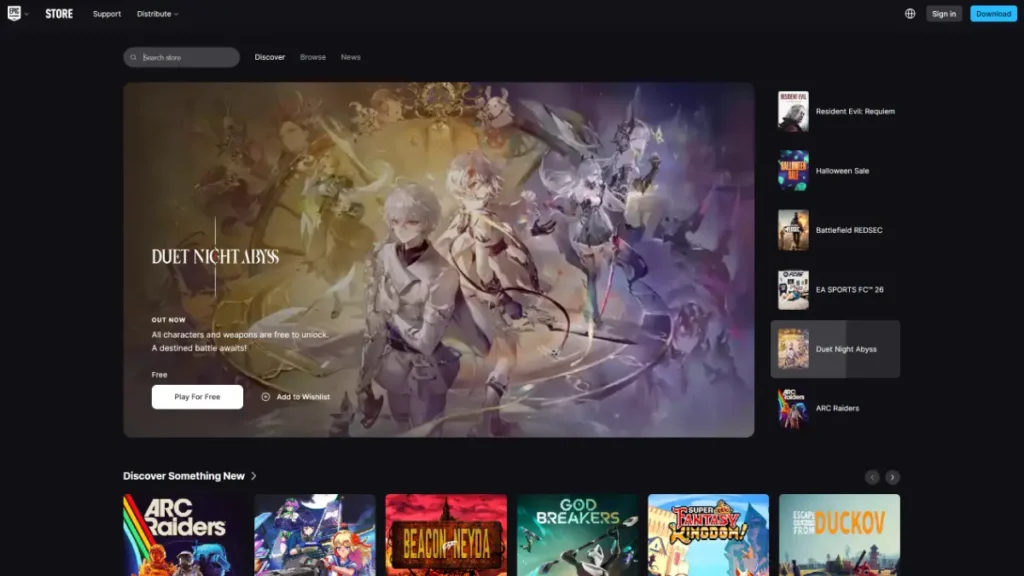
Method 2: Junk-Store Plugin (Best for Gaming Mode Experience)
Junk-Store is a Decky Loader plugin that provides the most seamless experience for Epic on Steam Deck. Unlike Heroic, which requires launching a separate application, Junk-Store integrates Epic Games directly into your Gaming Mode interface, making it feel native to Steam. The Epic Games functionality is completely free.
Prerequisites: Installing Decky Loader
Junk-Store requires Decky Loader, a plugin framework for Steam Deck. If you don’t have it installed:
Step 1: Enable Developer Mode
- Press Steam button and open System Settings
- Under System, toggle “Enable Developer Mode“
- Open the Developer menu (now at bottom of side panel)
- Under Miscellaneous, toggle “CEF Remote Debugging” on
- Restart your Steam Deck
Step 2: Install Decky Loader
- Switch to Desktop Mode
- Open a web browser and go to the Decky Loader website
- Download and run the installer
- Follow the prompts to complete installation
- Return to Gaming Mode
Installing Junk-Store Plugin
Step 1: Access Decky Store
In Gaming Mode, press the Quick Access Menu button (three dots). You’ll see a new power plug icon at the bottom—this is Decky Loader. Click it, then click the store icon in the top right corner.
Step 2: Install Junk-Store
Search for “Junk-Store” and tap Install. Once installed, you’ll find it in your Decky Loader plugins list.
Step 3: Install Dependencies
- Open Junk-Store from the Decky menu
- Go to “About” then “Dependencies”
- Click “Install Dependencies” and wait
- Install “Proton Easy Anti Cheat” and “Proton BattlEye Runtime”
- After installation completes, click “Reload Scripts”
Step 4: Log Into Epic Games
- Go back to Junk-Store and select “Games”
- Click the login button
- Use Steam+X to bring up the on-screen keyboard
- Enter your Epic Games credentials
Your Epic Games library will now appear directly in the Junk-Store interface within Gaming Mode.
Installing and Playing Games
From the Junk-Store plugin:
- Browse your Epic Games library
- Select a game and click Install
- Choose installation location
- Once downloaded, the game appears in your Steam library
- Launch directly from Steam’s Non-Steam games section
Games integrate seamlessly with Steam’s interface, including access to Quick Access Menu settings like FPS limiters and performance profiles.

Troubleshooting Common Issues
While installing Epic on Steam Deck is generally straightforward, you might encounter a few common problems. Here are solutions to the most frequently reported issues.
Game Won’t Launch
Try switching Proton versions. In Heroic, this is in the game’s settings. For Junk-Store, right-click the game in Steam, go to Properties > Compatibility, and select a different GE-Proton version.
Login Issues in Heroic
Heroic occasionally logs users out. If this happens, simply log back in through the “Manage Accounts” tab. This is a known bug that developers are working on.
Missing Anti-Cheat Support
Games with anti-cheat (Fortnite, Destiny 2) won’t work on Steam Deck unless developers enable Linux support. Check ProtonDB before installing multiplayer titles.
Controls Not Working
For Heroic: The launcher supports Steam Deck controls by default, but individual games may need custom controller configurations through Steam’s controller settings.
For Junk-Store: Games added through the plugin automatically use Steam’s controller system.
Storage Issues
If you’re running low on space, consider installing games to a microSD card. Both Heroic and Junk-Store support external storage—just select your SD card as the installation location.
Which Epic on Steam Deck Method Should You Choose?
Choose Heroic Games Launcher if:
- You want the simplest, most straightforward installation
- You also want to use GOG games (Heroic supports both)
- You prefer a stable, well-tested solution
- You don’t mind switching to Desktop Mode occasionally
Choose Junk-Store if:
- You want the most native Steam experience
- You prefer managing everything from Gaming Mode
- You’re comfortable installing Decky Loader
- You want Epic Games to feel fully integrated with Steam’s interface
Both methods work excellently, and many users have both installed for different use cases. You can’t go wrong with either option—pick the one that matches your preferences.
The Steam Deck’s flexibility is one of its greatest strengths. With either Heroic Games Launcher or Junk-Store, you can access your entire Epic Games library on the go, completely free. Whether you’ve been collecting those weekly free games or have purchased exclusives, your Epic library is now portable. Installing Epic on Steam Deck opens up a whole new world of gaming possibilities.

Unlock the full potential.
ModSmith covers everything from emulation to firmware tweaks. His guides demystify EmuDeck setups, custom firmware, homebrew, and console optimization. If it can be modded, patched, or customized, he’s already done it.