
Playing your Steam Deck games on a big screen transforms the portable gaming experience into a console-like setup perfect for sharing with friends or enjoying a more comfortable gaming session. Whether you want to connect Steam Deck to TV for party games, competitive gaming, or simply prefer larger displays, there are several reliable methods to achieve seamless connectivity.
The Steam Deck’s USB-C port supports DisplayPort Alt Mode, making it compatible with various display output solutions. From simple USB-C to HDMI adapters to full-featured docking stations, you have multiple options depending on your budget and requirements.
Connect Steam Deck to TV Using USB-C to HDMI Adapters
The most straightforward way to connect Steam Deck to TV is through a USB-C to HDMI adapter. This method requires minimal setup and works immediately with most modern televisions and monitors.
Recommended USB-C to HDMI Adapters:
- Anker USB-C to HDMI Adapter (4K@60Hz support)
- Cable Matters USB-C to HDMI 2.1 (supports 4K@120Hz)
- UGREEN USB-C HDMI Adapter (reliable budget option)
Step-by-Step Connection Process:
- Power off your Steam Deck completely
- Connect the USB-C adapter to your Steam Deck’s charging port
- Use an HDMI cable to connect the adapter to your TV’s HDMI input
- Power on your Steam Deck and switch your TV to the correct HDMI input
- The display should automatically detect and mirror your Steam Deck screen
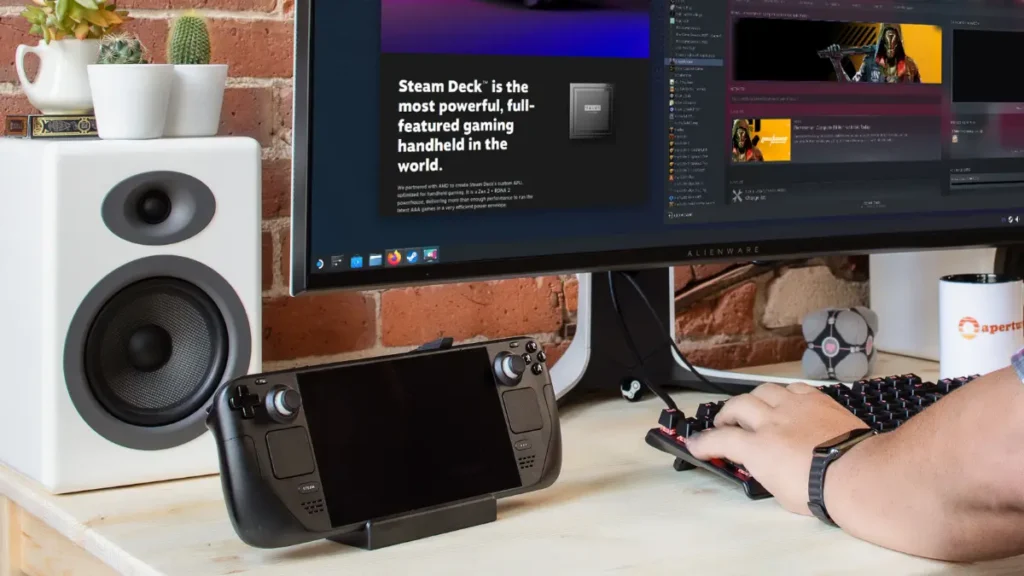
Display Settings Optimization: Access display settings through Steam Deck’s Gaming Mode by pressing the Steam button, navigating to Settings > Display. Here you can adjust resolution, refresh rate, and scaling options. For most TVs, 1920×1080 at 60Hz provides the best balance of performance and visual quality.
Performance Considerations: When using external displays, your Steam Deck works harder to render games at higher resolutions. Consider lowering in-game settings to maintain smooth framerates, especially for demanding titles. The Steam Deck’s APU can handle 1080p gaming well, but 4K gaming may require significant compromises in graphical settings.
When choosing which Steam Deck model works best for your TV gaming setup, consider checking our comprehensive Steam Deck models comparison guide to find the right variant for your needs.
Steam Deck TV Connection Through Docking Stations
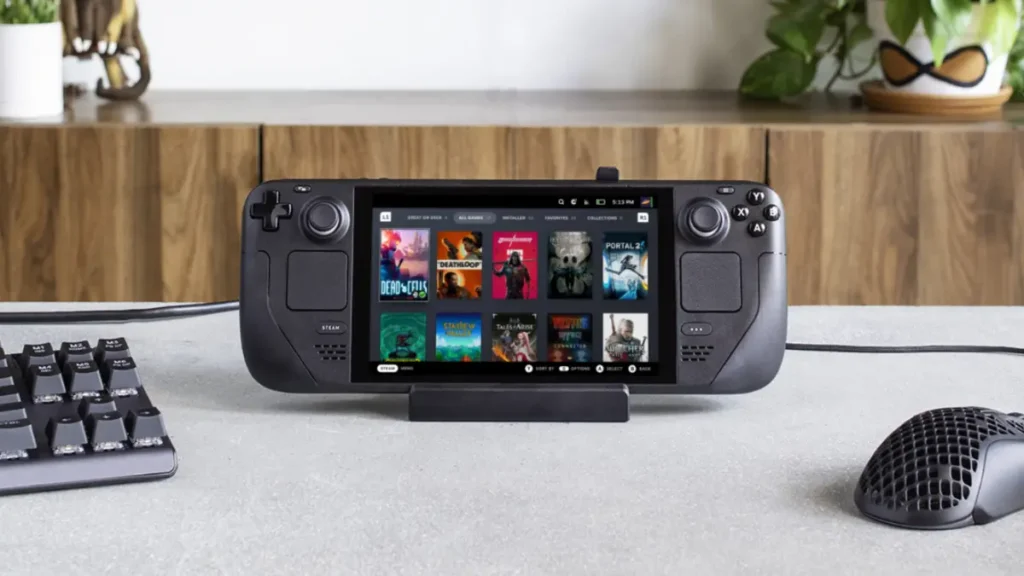
Docking stations offer the most convenient way to connect Steam Deck to TV while maintaining charging capabilities and additional connectivity options. These solutions transform your handheld into a desktop gaming setup.
Official Valve Steam Deck Docking Station: Valve’s official dock provides a premium experience with DisplayPort 1.4, HDMI 2.0, USB-A ports, and Gigabit Ethernet. The dock supports up to 4K@60Hz output and includes a power adapter to keep your Steam Deck charged during extended gaming sessions.
Third-Party Docking Alternatives:
- JSAUX Docking Station HB0603 (excellent value with multiple ports)
- iVoler 7-in-1 Steam Deck Dock (includes SD card reader)
- NewQ Docking Station (compact design with cooling fan)
Setting Up Your Docking Station: Place your Steam Deck in the dock’s designated slot, ensuring proper alignment with the USB-C connector. Connect your HDMI cable from the dock to your TV, then plug in the power adapter. The Steam Deck should automatically detect the external display and switch to TV output mode.
Dock-Specific Features: Most quality docking stations include additional USB ports for external keyboards, mice, or storage devices. Ethernet connectivity through docks often provides more stable internet connections than Wi-Fi, particularly beneficial for online gaming and large game downloads.
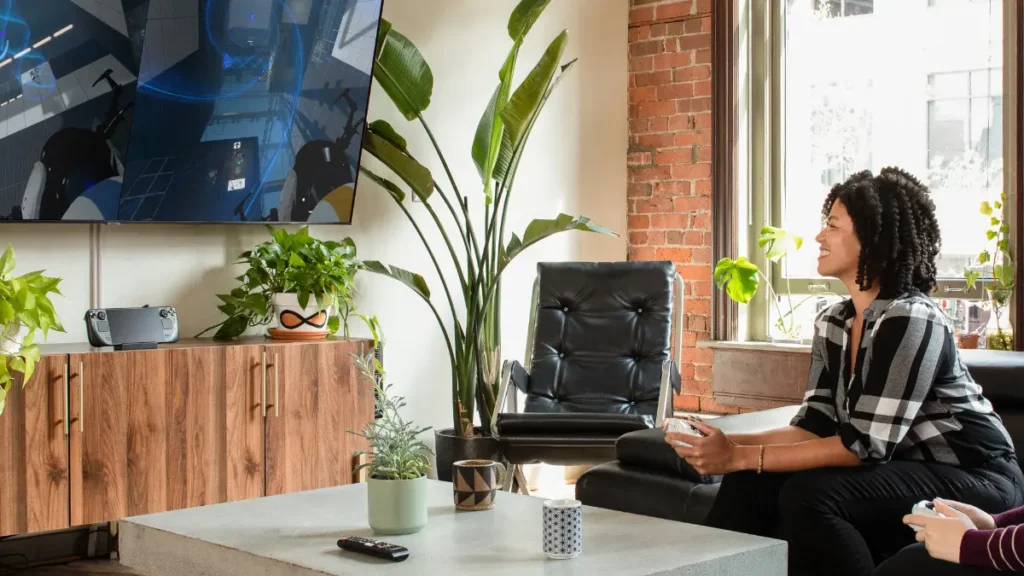
Steam Deck Gaming Mode vs Desktop Mode TV Output
Steam Deck behaves differently in Gaming Mode versus Desktop Mode when connected to external displays. Understanding these differences helps optimize your TV gaming experience.
Gaming Mode TV Experience: When you connect Steam Deck to TV in Gaming Mode, the interface automatically scales for television viewing. The Steam Deck’s gaming-focused UI remains familiar, with easy navigation using controllers. This mode works best for gaming sessions and media consumption.
Desktop Mode Advantages: Desktop Mode provides a full Linux desktop environment that’s particularly useful when connected to larger displays. You can run multiple applications simultaneously, browse the web comfortably, and even use the Steam Deck as a compact desktop computer.
Switching Between Modes: Access Desktop Mode by holding the power button and selecting “Switch to Desktop” from the menu. To return to Gaming Mode while connected to TV, use the “Return to Gaming Mode” desktop shortcut or restart your Steam Deck.
Controller and Input Options: In Desktop Mode connected to TV, consider using wireless keyboards and mice for improved productivity. The Steam Deck’s built-in controls work for gaming but become cumbersome for desktop applications and web browsing on larger screens.
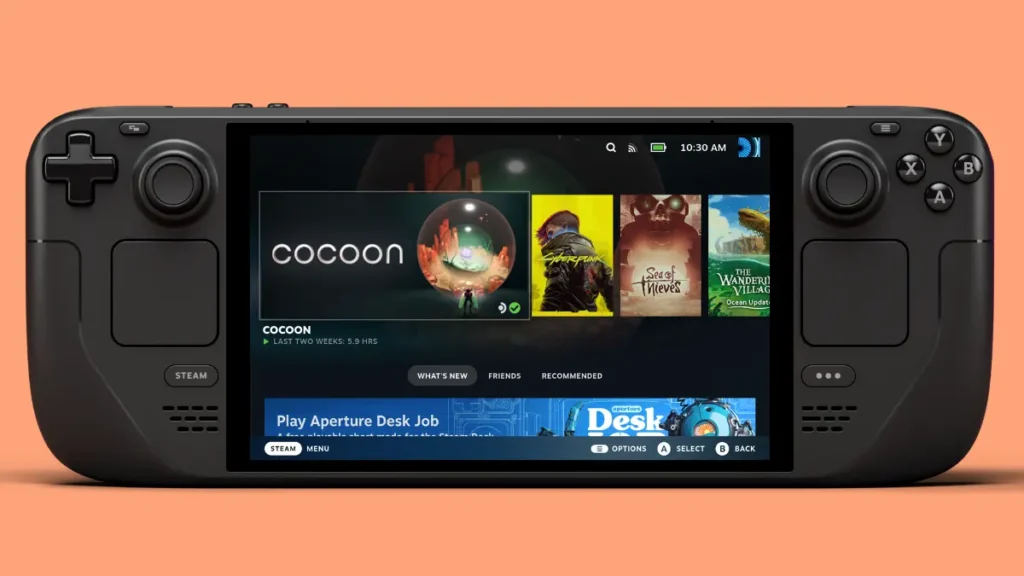
Troubleshooting Common Display Connection Problems
Common connection problems have straightforward solutions that can quickly restore your Steam Deck TV setup functionality.
No Display Output Problems: If your TV shows no signal when attempting to connect Steam Deck to TV, first verify all cable connections are secure. Try a different HDMI port on your television and ensure the Steam Deck is powered on before connecting cables. Some adapters require the Steam Deck to be awake during initial connection.
Audio Output Configuration: Steam Deck may continue outputting audio through its built-in speakers instead of your TV. Access audio settings through the quick menu (Steam button + X), select “Audio,” and change the output device to your connected display. Alternatively, use the system settings in Desktop Mode to configure audio routing permanently.
Resolution and Display Quality Issues: If the image appears blurry or incorrectly scaled, adjust display settings manually. Access Gaming Mode settings, navigate to Display, and experiment with different resolution and scaling options. Some older TVs may require specific resolution settings to display correctly.
Performance and Input Lag: High input lag can negatively impact gaming experience when you connect Steam Deck to TV. Enable “Game Mode” on your television to reduce processing delay. Additionally, using wired connections instead of wireless adapters typically provides lower latency.
Charging While Connected: When using simple USB-C to HDMI adapters, your Steam Deck cannot charge simultaneously. For extended gaming sessions, use docking stations with pass-through charging or USB-C hubs that support Power Delivery. This helps maintain battery levels during TV gaming.
Optimizing Your Gaming Setup for Best Performance
Creating the ideal Steam Deck TV gaming environment involves considering both hardware setup and software configuration for the best possible experience.
Display Settings Recommendations: For optimal performance when you connect Steam Deck to TV, use 1920×1080 resolution at 60Hz refresh rate. The Steam Deck’s USB-C port technically supports higher resolutions like 1440p or 4K. However, these settings often cause significant performance drops and Gaming Mode interface problems. Most users should stick to 1080p as even this resolution can be challenging for modern AAA games without reducing graphics settings.
Game-Specific Optimizations: Adjust individual game settings when playing on TV displays. Many games benefit from higher UI scaling when played on larger screens, making text and interface elements more readable from typical couch viewing distances.
Audio Enhancement: Take advantage of your TV’s superior audio capabilities compared to the Steam Deck’s built-in speakers. Configure 5.1 or 7.1 surround sound if your TV supports it, enhancing the gaming experience significantly.
Successfully connecting your Steam Deck to TV opens up new possibilities for portable gaming, from multiplayer sessions to comfortable single-player experiences. Whether you choose simple USB-C adapters for occasional use or invest in a full docking station for regular TV gaming, the Steam Deck’s versatile connectivity options accommodate various setups and budgets.

Unlock the full potential.
ModSmith covers everything from emulation to firmware tweaks. His guides demystify EmuDeck setups, custom firmware, homebrew, and console optimization. If it can be modded, patched, or customized, he’s already done it.