
The Steam Deck has revolutionized portable gaming by combining the power of a desktop PC with the convenience of a handheld console. While Valve’s device excels at running modern Steam games, it has also emerged as the ultimate retro gaming machine for enthusiasts seeking Steam Deck emulation capabilities. With its AMD Zen 2 CPU and RDNA 2 GPU architecture, the Steam Deck can handle everything from 8-bit classics to demanding PlayStation 3 and Nintendo Switch titles.
Unlike dedicated retro handhelds that cost significantly less but offer limited performance, the Steam Deck provides desktop-level emulation capabilities in a portable form factor. The device’s exceptional price-to-performance ratio, combined with its large game library through Steam integration, makes it the perfect storm of handhelds for both modern and retro gaming.
This comprehensive guide explores every available Steam Deck emulation solution in 2025, from beginner-friendly automated setups to advanced manual configurations. Whether you’re new to Steam Deck emulation or a seasoned veteran, you’ll discover the perfect approach to transform your Steam Deck into a retro gaming powerhouse.
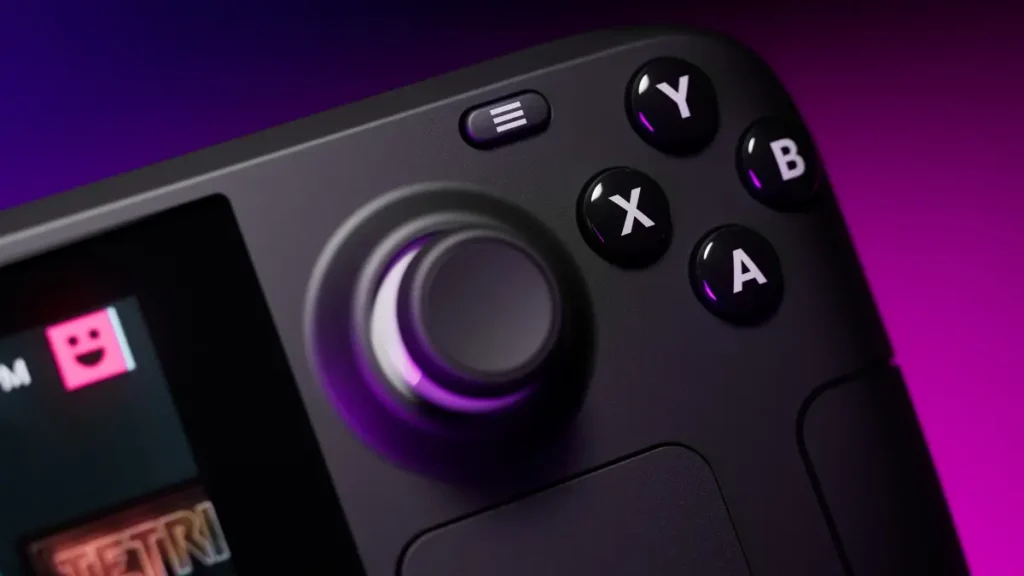
Why Steam Deck Emulation is the Best Choice for Portable Gaming
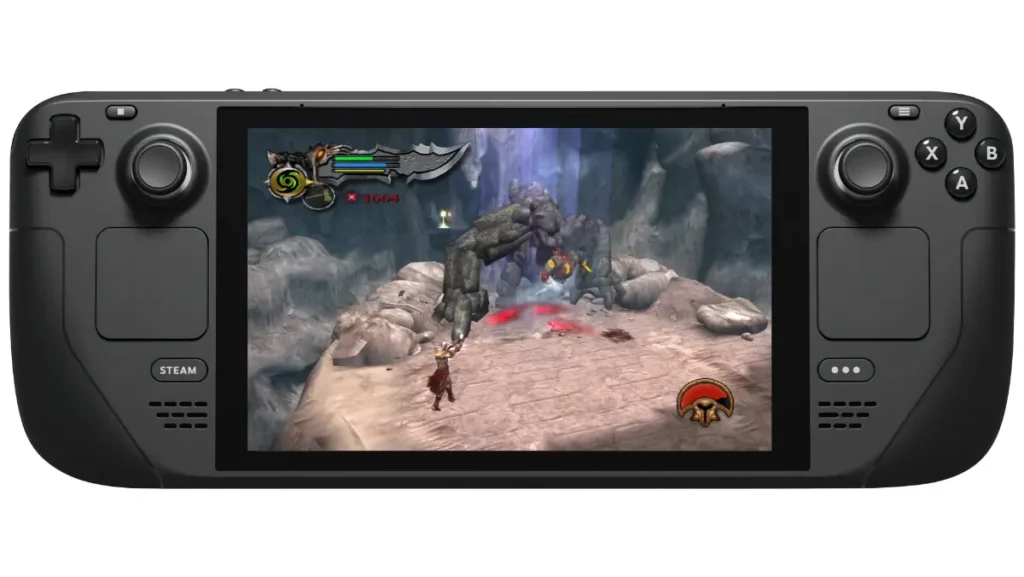
The Steam Deck’s hardware specifications make it uniquely suited for emulation tasks. The device features a similar Zen 2 + RDNA 2 architecture to modern gaming PCs, which is why AAA games perform surprisingly well, and by extension, retro games absolutely fly. This processing power allows the Steam Deck to emulate even challenging systems like PlayStation 3 with remarkable success.
Even with the CPU-intensive task of PS3 emulation through RPCS3, which runs the Steam Deck’s processor at 100% constantly, the device manages to hold its own admirably. Games like Demon’s Souls and Skate 3 run at a solid 30 fps with no hitches. This level of performance demonstrates the Steam Deck’s capability to handle virtually any retro gaming scenario.
The 7-inch 1280×800 display provides excellent clarity for classic games, while the comprehensive control layout includes dual analog sticks, a D-pad, face buttons, shoulder triggers, and even trackpads for mouse-heavy systems. The Steam Deck’s controls map naturally to various gaming systems, particularly excelling with motion controls through its built-in gyro sensor.
From a value perspective, the Steam Deck offers desktop PC emulation performance at a fraction of the cost of building a dedicated gaming PC. When compared to premium retro handhelds that cost $200-400 and struggle with anything beyond PlayStation 1, the Steam Deck’s starting price represents exceptional value. The vastly superior performance makes it ideal for serious emulation enthusiasts.
EmuDeck: The Community Favorite
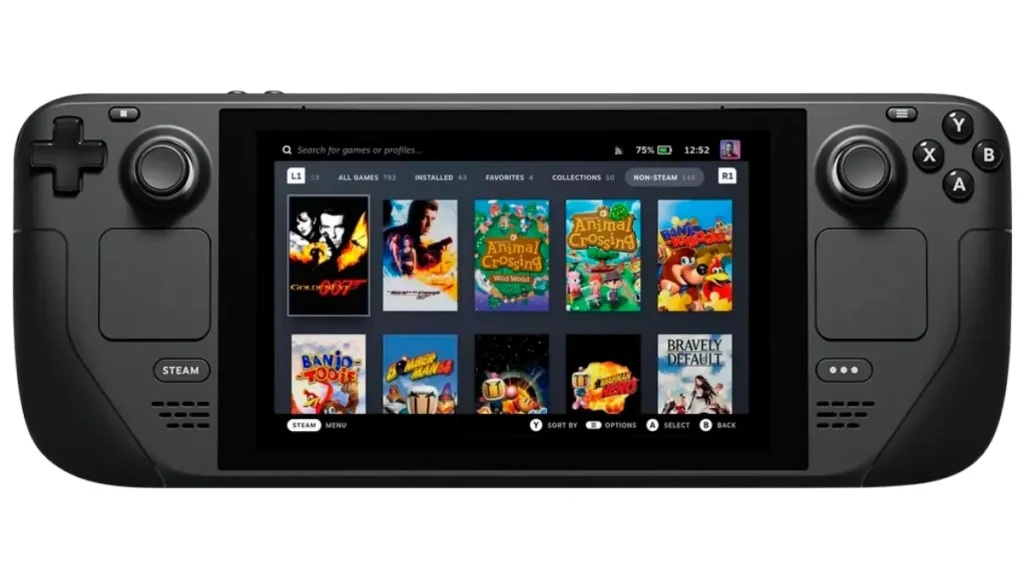
EmuDeck is a tool that integrates many functions into one: it downloads emulators from their official sources, pre-configures settings and hotkeys, and works together with EmulationStation and the Steam ROM Manager. Rather than being a traditional application, EmuDeck functions as a collection of intelligent scripts that automate the typically complex process of emulator installation and configuration.
EmuDeck simplifies the installation of 160 emulators and supporting utilities to your Steam Deck. It also pre-configures all controls, aspect ratio settings, and other parameters. This comprehensive approach has made it the most popular choice within the Steam Deck community, frequently recommended across forums, Reddit discussions, and Discord servers.
The installation process begins by switching to Desktop Mode and downloading the EmuDeck installer from the official website. The 2025 version of EmuDeck includes powerful tools like BIOS Checker to confirm essential files are installed, Game Compressor to save storage space, and Storage Mover to transfer ROMs between internal and SD card storage.
What sets EmuDeck apart is its Steam ROM Manager integration. Unlike other solutions, EmuDeck allows you to add your ROMs to the Steam Library as individual games, complete with custom artwork and metadata. This means your retro games appear alongside your Steam titles in Gaming Mode, creating a seamless integrated experience.
Pros:
- Most comprehensive emulator support
- Seamless Steam library integration
- Active community support and frequent updates
- Extensive customization options
- No root access required
Cons:
- More complex setup compared to alternatives
- Requires some technical knowledge for troubleshooting
- Can feel overwhelming for beginners
Best for: Users who want individual ROM shortcuts in their Steam library and don’t mind a more involved setup process.
RetroDECK: The All-in-One Solution
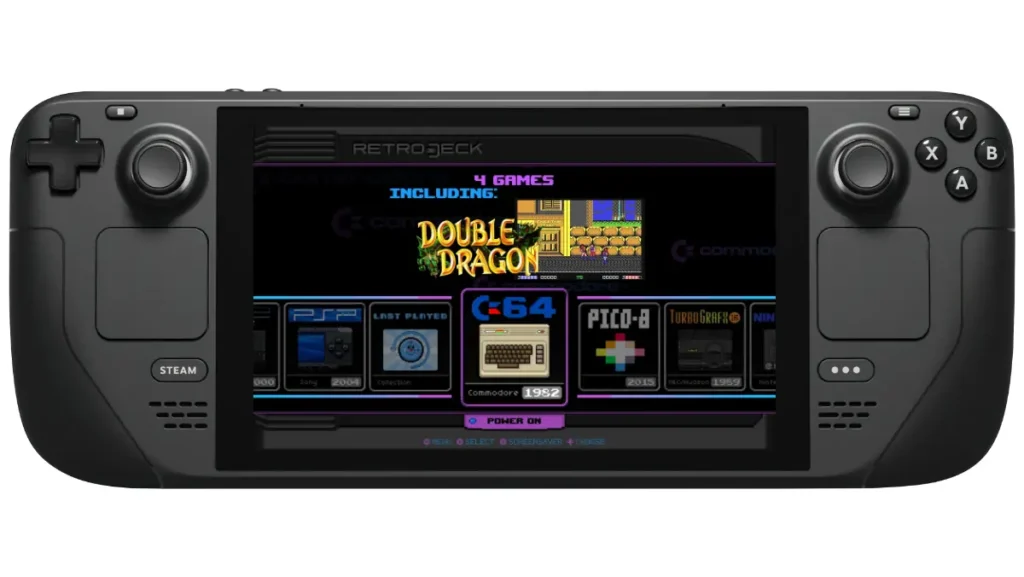
RetroDECK is an all-in-one emulation solution that uses EmulationStation as its main interface. Because it is self-contained, it behaves as a single app with all emulators pre-installed and configured. This approach represents the middle ground between EmuDeck’s flexibility and Batocera’s complete separation from SteamOS.
RetroDECK is available as a Flatpak directly in the Discover app via Desktop Mode on your Steam Deck, making the installation process extremely straightforward. The entire package weighs several gigabytes because it includes every supported emulator by default. This eliminates the need to choose which systems to install.
The standout feature of RetroDECK is its simplicity: it’s basically “use a wizard, insert ROMs and start playing.” For example, RPCS3 even downloads the PlayStation 3 firmware automatically so it can work immediately. This plug-and-play philosophy makes RetroDECK particularly attractive to users who want to start Steam Deck emulation gaming quickly without extensive configuration.
RetroDECK includes a custom ES-DE theme with pixel text and retro vibes, though users can choose any ES-DE theme in the settings menu. The interface provides a clean, console-like experience for browsing and launching games, complete with automatic metadata and artwork downloading.
Unlike EmuDeck, RetroDECK does NOT add ROM games as individual entries in your Steam library. Instead, you open RetroDECK and choose your games from within the EmulationStation interface. This approach keeps your Steam library clean while providing a dedicated retro gaming environment.
Pros:
- Simple installation and setup
- Self-contained with no system modifications
- Automatic BIOS and firmware handling
- Clean, unified interface
- Easy to remove completely
Cons:
- Less customization than EmuDeck
- Larger storage footprint
- No Steam library integration
- Still in active development
Best for: Users who prefer a unified retro gaming interface and want the simplest possible setup experience.
Batocera: Dedicated Steam Deck Emulation OS Experience

Batocera.linux is an open-source and completely free retro-gaming distribution that can be copied to a USB stick or an SD card with the aim of turning any computer into a gaming console. For Steam Deck users, this means the ability to boot into a completely dedicated retro gaming environment separate from SteamOS.
Batocera is completely self-contained and bootable from a variety of formats. You can load Batocera on a microSD card, flash drive, or external hard drive and boot from there. This setup allows you to use your Steam Deck primarily for PC games when ready for retro gaming. Simply insert the Batocera SD card and boot into a dedicated retro gaming experience.
Batocera provides access to 200+ gaming systems and is built from carefully selected emulators and cores, requiring minimal configuration time. The system supports most controllers out of the box and includes features like themes, shaders, bezels, rewinding, and RetroAchievements. Batocera offers predictability in its release cycle with generally 3 new releases per year, each adding support for new devices and emulator improvements.
The installation process involves downloading the Steam Deck-specific Batocera image and flashing it to a microSD card using tools like Balena Etcher. It’s possible to make Batocera the default OS to boot on Steam Deck instead of SteamOS by adjusting boot settings in the BIOS. However, most users prefer the dual-boot microSD approach.
The main limitation of Batocera on Steam Deck is that, being a completely different operating system, users cannot access SteamOS options to control FPS, TDP, and other Steam Deck-specific settings. Additionally, you lose access to your Steam library while using Batocera.
Pros:
- Completely dedicated retro gaming OS
- Mature, stable platform with years of development
- No impact on SteamOS installation
- Excellent out-of-box experience
- Strong theme and customization support
Cons:
- No access to Steam Deck hardware controls
- Separate from Steam library
- Requires SD card boot management
- Learning curve for Linux-based OS
Best for: Retro gaming purists who want a completely dedicated emulation experience and don’t mind booting into a separate OS.
EmulationStation-DE: The Standalone Frontend
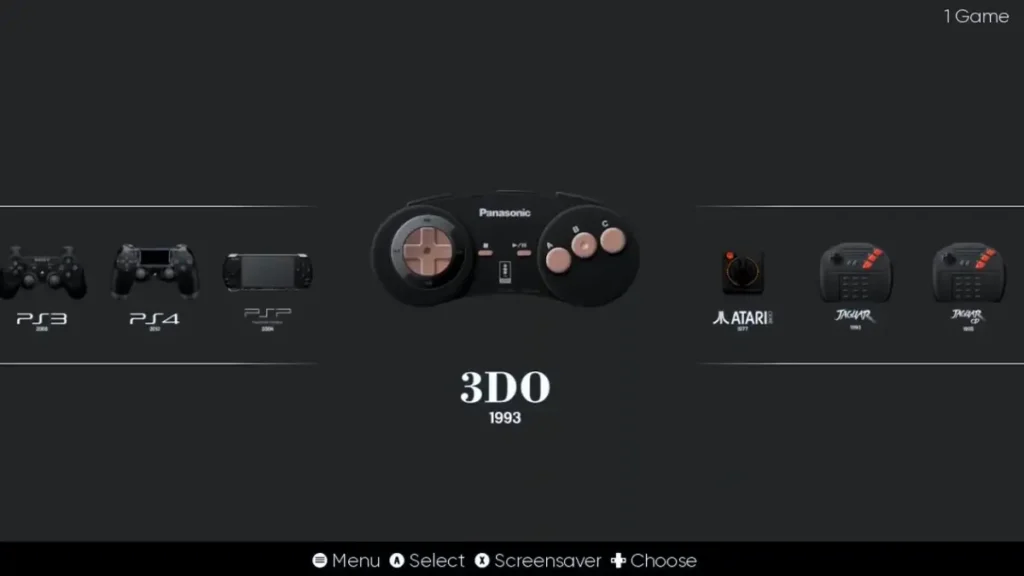
EmulationStation-DE provides a self-contained user interface to browse and launch retro games. The version found on Steam Deck is known as EmulationStation-DE (Desktop Edition). While commonly bundled with EmuDeck and RetroDECK, EmulationStation-DE can also be installed independently for users who prefer manual emulator configuration.
EmulationStation-DE can be installed independently by downloading the latest AppImage and installing it on your Steam Deck. This approach gives users the attractive frontend interface without the automated installation scripts of other solutions. The system automatically detects ROM additions and removals, updating the interface accordingly.
The standalone approach appeals to users who want to manually configure specific emulators while maintaining an attractive, console-like browsing experience. EmulationStation-DE supports extensive theming, metadata scraping, and organizational features that make large ROM collections manageable and visually appealing.
Best for: Advanced users who prefer manual emulator configuration but want a polished frontend interface for game launching.
Manual Emulator Installation
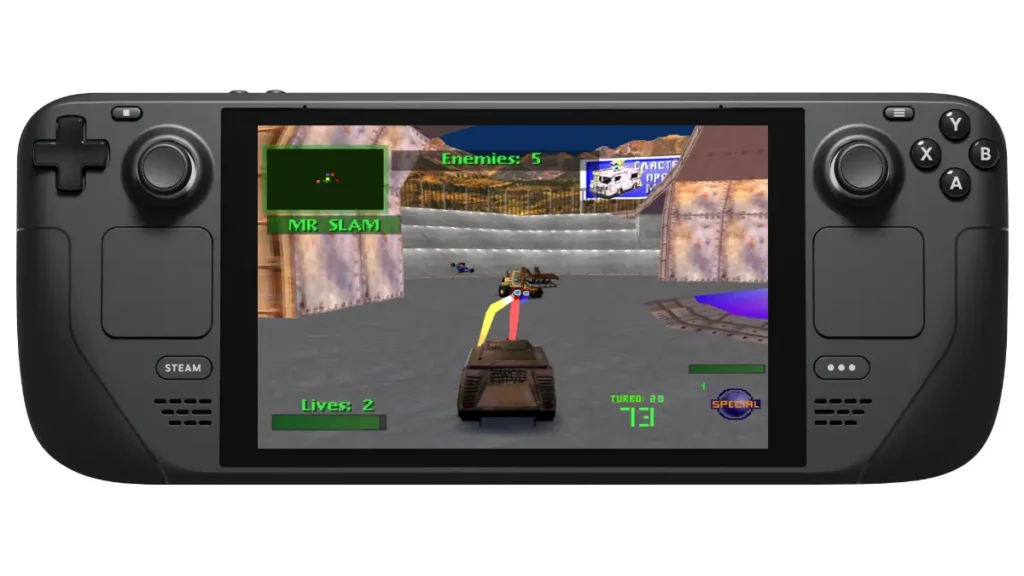
For users who want complete control over their emulation setup, individual emulator installation remains an option. This approach involves downloading and configuring each emulator separately through Desktop Mode.
Manual installation provides maximum flexibility and customization options but requires significant technical knowledge and time investment. Users must handle BIOS file installation, controller configuration, and performance optimization for each emulator individually. This approach involves popular options like RetroArch for multi-system emulation, Dolphin for GameCube and Wii games, and PCSX2 for PlayStation 2. Note that both major Switch emulators Yuzu and Ryujinx were shut down by Nintendo in 2024, though community forks may still exist.
The main advantage is precise control over every aspect of the emulation experience, including the ability to use cutting-edge development versions of emulators and highly specific configuration tweaks. However, the complexity and time investment make this approach impractical for most users.
Best for: Expert users who need specific emulator versions or configurations not available through automated solutions.
Steam Deck Emulation Performance: Comparing All Solutions
All major Steam Deck emulation solutions achieve similar performance levels since they utilize the same underlying emulators. The Steam Deck handles 8-bit and 16-bit systems flawlessly, runs PlayStation 1, Nintendo 64, and Dreamcast games at full speed, and manages more demanding systems like GameCube, PlayStation 2, and Wii with excellent compatibility.
PlayStation 3 emulation through RPCS3 varies significantly based on game choice, with demanding titles struggling to maintain playable frame rates. Nintendo Switch emulation through Ryujinx runs many titles at impressive frame rates when properly configured. This became the primary Switch emulator following Yuzu’s shutdown in February 2024.
Battery life varies primarily based on the emulated system rather than the chosen solution. Simpler 8-bit and 16-bit systems provide significantly longer gameplay sessions, while demanding systems like PlayStation 3 or Nintendo Switch games consume considerably more power. Storage requirements depend on your ROM collection size, with most solutions supporting both internal storage and microSD card installation.
User experience differences focus primarily on game launching methods: EmuDeck integrates ROMs into Steam library, RetroDECK provides a dedicated EmulationStation interface, while Batocera offers a completely separate OS experience.
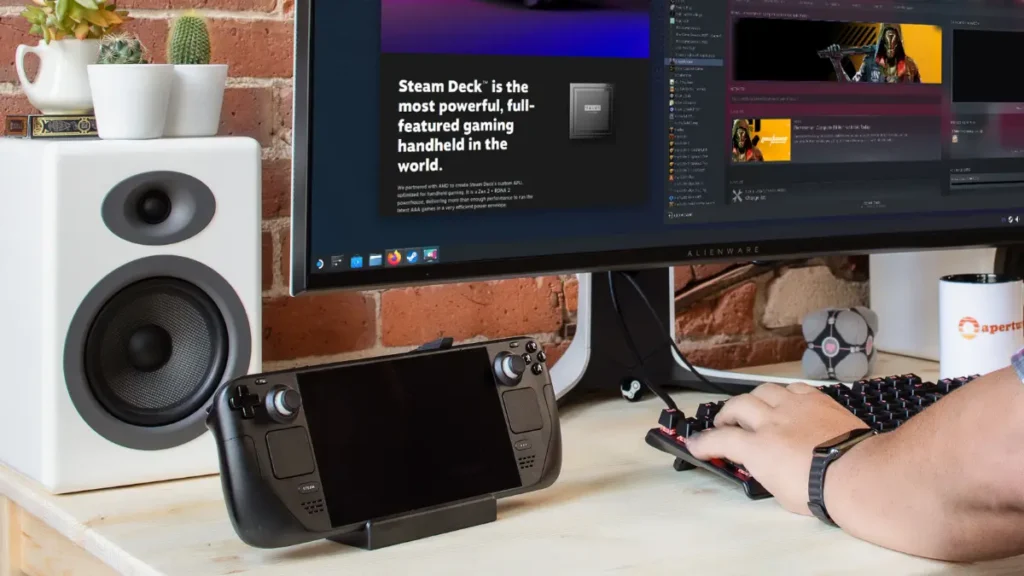
Ready for big-screen nostalgia? Don’t miss our step-by-step tutorial on connecting Steam Deck to TV to maximize your retro gaming setup.
Conclusion and What’s Next
The Steam Deck’s versatility shines through its multiple Steam Deck emulation approaches, each catering to different user preferences and technical comfort levels. EmuDeck remains the community favorite for its comprehensive features and Steam integration. RetroDECK appeals to users seeking simplicity and unified interfaces, while Batocera satisfies purists wanting dedicated retro gaming experiences.
For beginners, RetroDECK offers the gentlest introduction to handheld emulation with its automated setup and clean interface. Intermediate users will appreciate EmuDeck’s extensive customization options and Steam library integration. Advanced users and retro gaming enthusiasts should consider Batocera for its mature, dedicated OS approach.
In upcoming detailed guides, we’ll provide step-by-step installation tutorials, optimization tips, and troubleshooting advice for each Steam Deck emulation solution. These comprehensive tutorials will help you get the most out of your chosen emulation setup, ensuring optimal performance and the best possible retro gaming experience on your Steam Deck.
The Steam Deck has truly established itself as the ultimate portable emulation device, offering desktop-level Steam Deck emulation performance in a handheld form factor that makes classic gaming more accessible and enjoyable than ever before.

Unlock the full potential.
ModSmith covers everything from emulation to firmware tweaks. His guides demystify EmuDeck setups, custom firmware, homebrew, and console optimization. If it can be modded, patched, or customized, he’s already done it.